MENTORbot for AE
An AI-powered panel that lives inside Adobe After Effects. Ask anything AE related: how to pull off a technique, a custom expression script, what a field in a plugin actually does, and so on. Get answers backed by trusted sources you control: Adobe documentation, plugin developer sites and tutorial schools, every source named, labeled and linked. All without leaving your AE workspace. Free. No subscription. No server.
AE knowledge,
inside your panel.
MENTORbot lives inside AE as a native panel. Type your question, press Enter, get an answer inline. No browser tab switching, no copy-pasting. The spinner shows while Gemini processes your inquiry.
The AI is scoped to After Effects only. Off-topic questions are politely declined by Gemini. Five specialist filters keep answers relevant to your exact workflow category.
Uses Google Gemini 2.5 Flash free tier: 250 requests/day, 10 per minute. You supply your own key from Google AI Studio. Stored locally, never shared. Validated live against Google before saving. Source checking adds 500 free web checks a day. If they run out, answers keep working and checking resumes tomorrow. Want higher limits? Upgrade your Gemini tier directly with Google. MENTORbot itself stays free.
Each question and answer is automatically saved as a .txt file in Documents/MENTORbot Logs. Answers aren't truncated, maxOutputTokens is set to 8192 (maximum) for complete, detailed responses.
Every answer is checked against trusted sources and split by where it came from: developer docs, tutorial schools, community. Each block is named, labeled and linked. Anything from the AI alone is marked, never dressed up as fact.
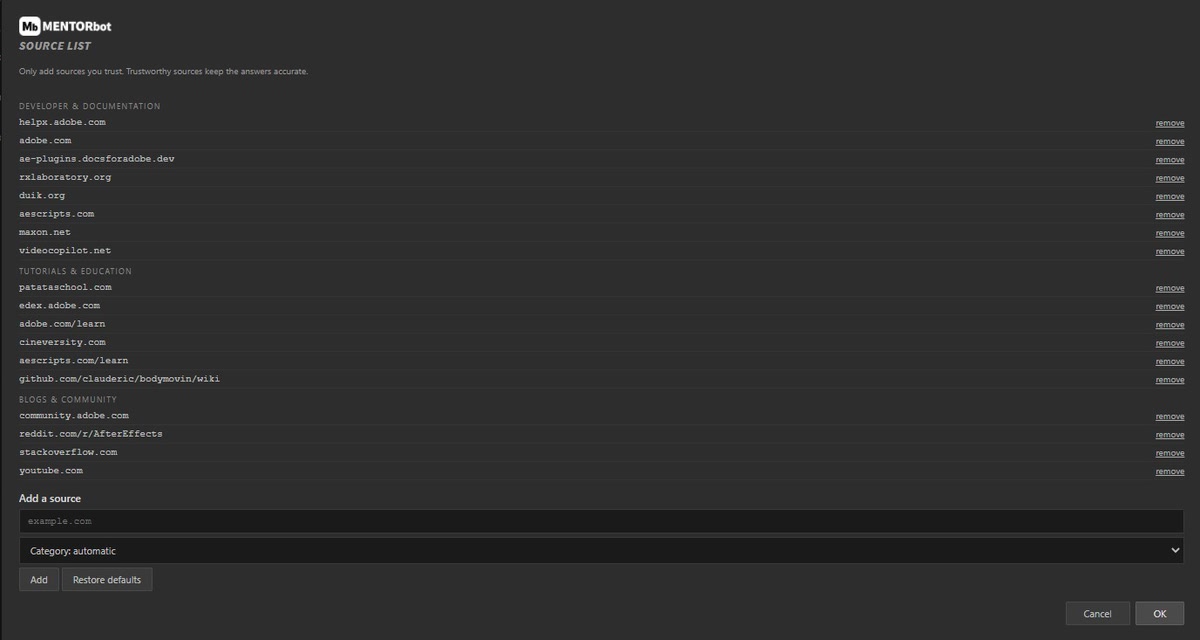
See every site MENTORbot checks. Remove any, add your own with a category of your choice, or let MENTORbot sort it automatically, and restore the defaults any time.
One question.
One answer.
Run the installer for your OS. It sets PlayerDebugMode=1 in the CSXS registry keys (CSXS.9 through CSXS.13) so After Effects recognises unsigned panels. Then manually copy the MENTORbot folder to the correct CEP extensions folder, path locations are in the Install section below.
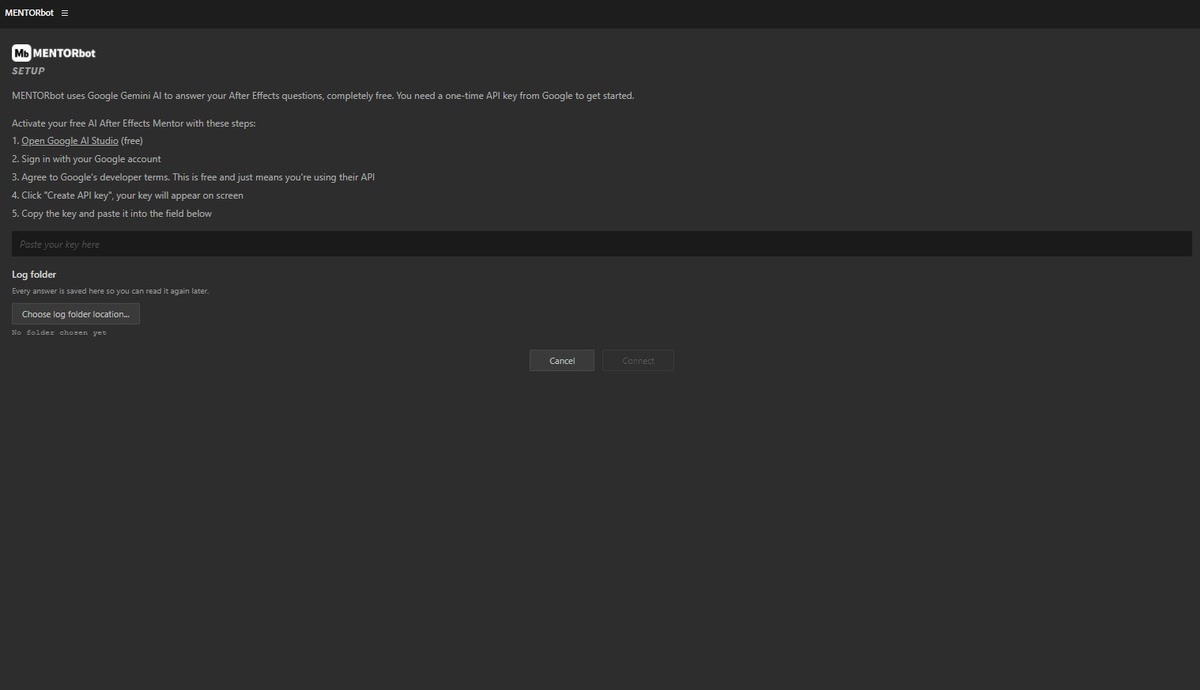
Paste your free API key from aistudio.google.com/apikey. It is validated live against Google, and both old AIzaSy and new AQ. key formats are supported.
Choose your log folder: where every answer is saved, and where the 7 day troubleshooting record lives that you can send us.
Connect stays inactive until both are set.
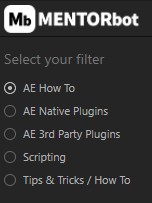
Select one of the five filters in the left column. The filter persists between questions and sends a different system prompt to Gemini with every request, shaping the type of answer you get.
There is no submit button. Press Enter to submit. The text's area is disabled during the API call to prevent duplicate submissions. A spinner appears with "Processing your inquiry..." while Gemini responds.
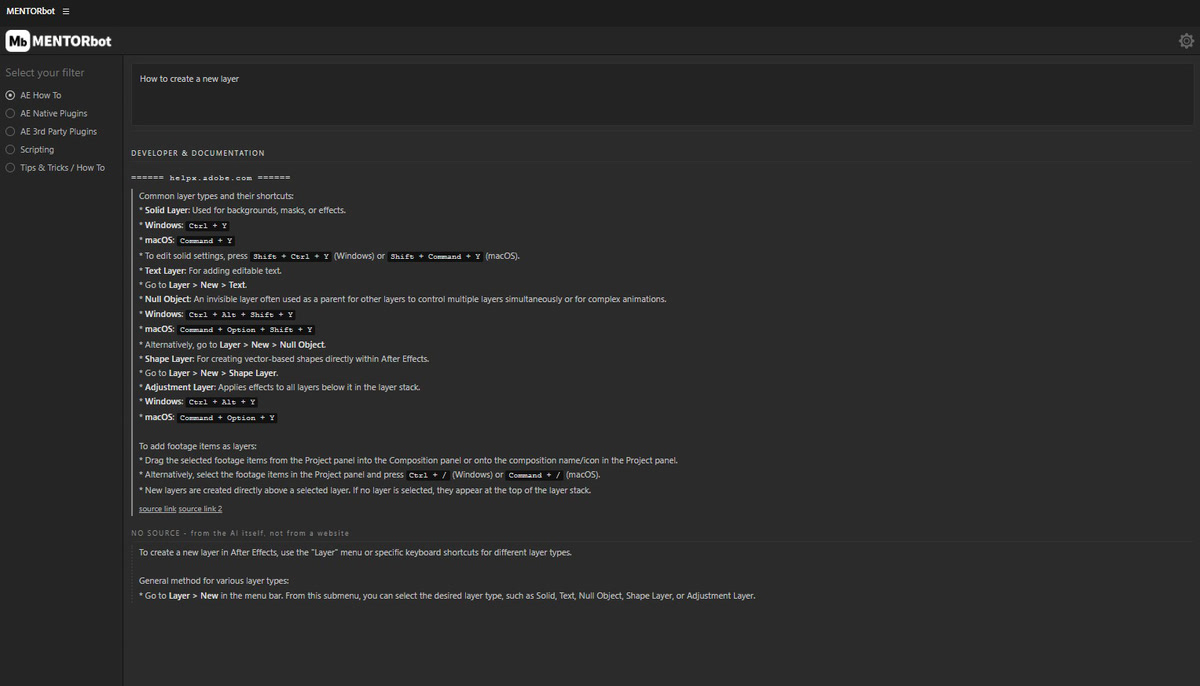
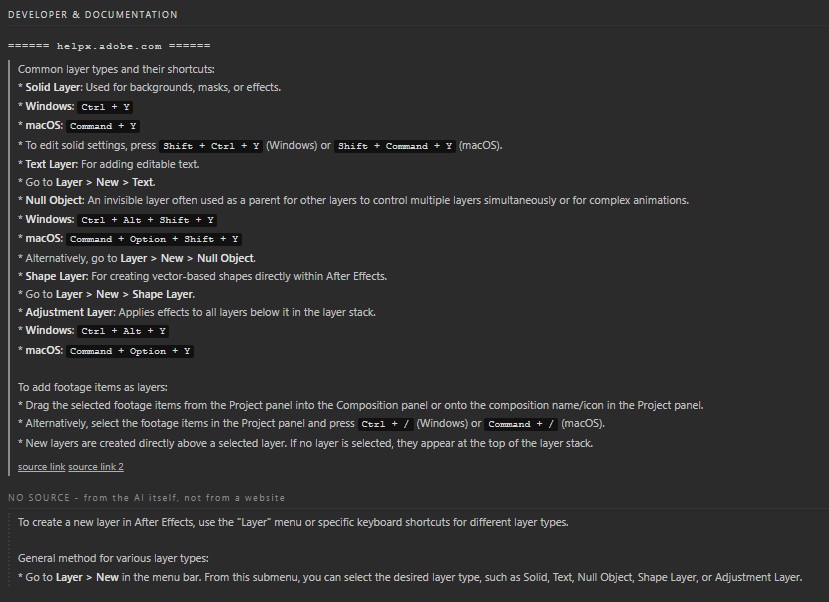
The answer renders below the question field, split into blocks by source: developer docs, tutorials, community. Each block ends with a source link that opens the real page in your browser. At the same time, a .txt log saves silently to your chosen folder, storing the full answer plus the real web addresses of every source, so you can revisit them any time, from the panel or from the log. No pop-ups, just the answer.
Go to Settings, click View / edit list to see the whitelist MENTORbot checks. Add or remove sites, pick a category for each or let MENTORbot sort it automatically, and restore the defaults any time.
Trust, but verify.
Flavor your sources.
Every answer is checked against trusted sources and split into blocks by where each part came from. Three categories, and the difference matters:
The word of the people who made the tool. Adobe's own documentation, and plugin developers' own sites such as RxLaboratory for Duik, Video Copilot, Maxon and aescripts. If it is here, it is the maker's own instruction.
Teaching sources. Schools and structured courses such as Patata School, Adobe Learn and Cineversity. Not the maker's word, but from people whose job is teaching it correctly.
Forums, blog posts, videos and Q&A threads. Real world experience, but opinion. One person's fix may not apply to your project, so this block always carries a 'could be opinion, verify yourself' warning.
You may also see Other sources, meaning a site Google found that is not on your list; Unconfirmed sources, where the address could not be verified; and No source, which is text the AI wrote from its own knowledge, labeled as such and never dressed up as fact.
Each block ends with a source link that opens the real page in your browser. And you control the list: open Settings to see every site MENTORbot checks, add or remove sites, pick a category for each or let MENTORbot sort it automatically, and restore the defaults any time.
Five filters.
To Rule Em All.
Each filter sends a different system prompt to Gemini 2.5 Flash with every request. The selected filter persists between questions so you stay in context. All filters are strictly AE only; off-topic questions are politely declined.
How To
Tools, panels, settings, and workflows inside After Effects.
Step-by-step instructions, workspace setup, render settings, composition workflows.
Native Plugins
Built-in AE effects and tools. How to use them and when.
e.g., Warp Stabilizer, Puppet Tool, Content-Aware Fill, and other built-in effects.
3rd Party Plugins
Third-party plugins used in animation, motion graphics, design, and VFX production.
e.g. RSMB, Element 3D, Optical Flares, Red Giant suite, and others.
AE expressions (JS-based), ExtendScript, and automation techniques.
Expression writing, scripting layer behaviour, automating repetitive tasks in AE.
Tricks
Techniques, shortcuts, and best practices for smarter AE work.
Workflow shortcuts, performance improvements, creative compositing techniques.
Every answer
saved automatically.
MENTORbot keeps two kinds of log, both in the folder you choose during setup: one for your answers, one for troubleshooting.
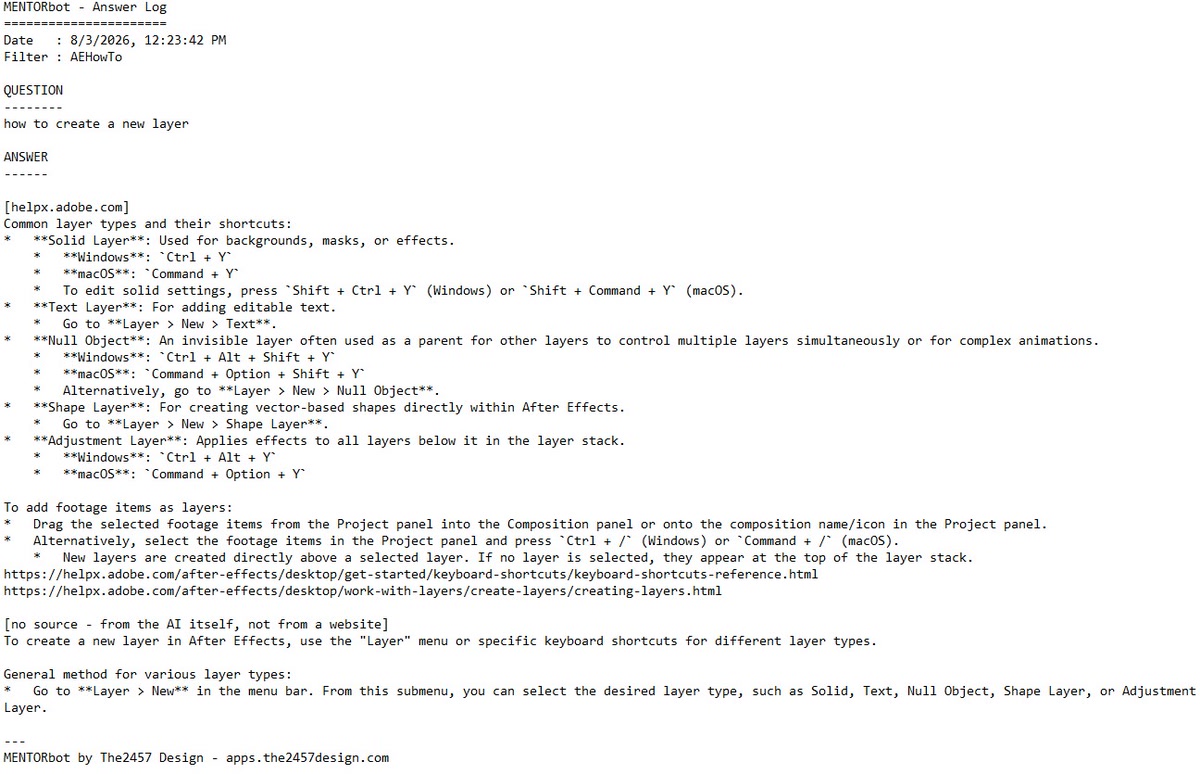
Each time you submit a question, MENTORbot silently saves a .txt file. No pop-ups, no prompts, no notification. Files are named by filter, keyword, date and time, so over time this builds into a personal AE tutorial and reference library of every technique you have looked up. Each file contains the full question at the top, the full answer below, split by source with the real web address of each, then category, date, and studio credit at the bottom.
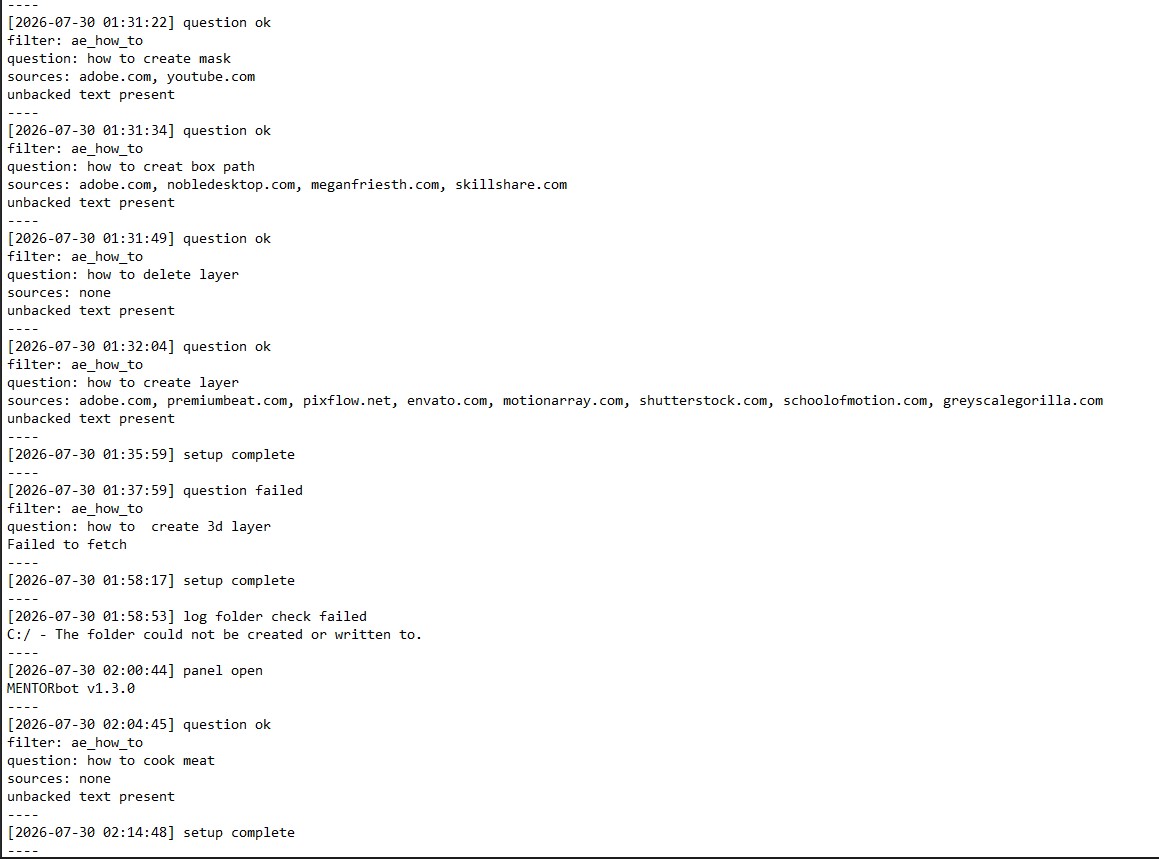
One single file, MENTORbot-Diagnostic-Log.txt, recording what the panel did and what Google replied. Last 7 days only, and never your API key. If something goes wrong, this is the file to send us. Settings has an Open diagnostic log button that opens it straight away.
You pick the folder during first-run setup, and can change it any time in Settings.
Registry keys first.
Manual copy second.
Get your free Gemini API key at aistudio.google.com/apikey. Important: create a fresh default project in Google AI Studio. Do not reuse existing Google Cloud projects. Existing projects may have the Gemini free tier limit set to 0, which means the key will appear valid but return no results. The free tier covers everything MENTORbot does: 250 questions and 500 source checks per day. No credit card, ever. For higher limits you can upgrade your Gemini tier directly with Google. The payment goes to Google, never to MENTORbot.
Install.bat → Run as administrator → click Yes when prompted. Sets PlayerDebugMode=1 for CSXS.9 through CSXS.12 on both HKCU and HKLM.MENTORbot folder to:C:\Program Files (x86)\Common Files\Adobe\CEP\extensions\Window → Extensions → MENTORbotInstall.command → Open → Open anyway if blocked by Gatekeeper. Your password may be required.MENTORbot folder to:/Library/Application Support/Adobe/CEP/extensions/Window → Extensions → MENTORbotErrors you can read.
No codes,
just plain language.
MENTORbot never shows you an error code. Every problem is explained in plain language, with what to do about it. For example:
- •Your key was not accepted. Paste a fresh one from AI Studio.
- •You are asking faster than the free tier allows. Wait about a minute.
- •Today's free allowance is used up. It resets tomorrow.
- •Google could not be reached. Check your internet connection.
- •That log folder cannot be written to. Pick another one in Settings.
and so on. Most issues you can solve yourself in seconds, without hunting a code in a manual.
If a problem persists, or the message does not get you unstuck, send it to us. Two ways, whichever suits you:
- •Copy and paste. Open Settings, click Open diagnostic log. The file opens in your text editor. Select all, copy, paste it into the email.
- •Attach the file. It is called MENTORbot-Diagnostic-Log.txt and lives in your log folder. The exact path is shown in Settings under Log Folder.
Send it to  , or just click Email support in Settings which opens your mail app already addressed, with a short description of what you were doing. The file holds the last 7 days of technical detail, and never your API key.
from inside.